ScreenKite Review - The Mac Screen Recorder Your AI Agent Can Edit
We've tested ScreenKite, a native Mac screen recorder and video editor that hands its timeline to your own AI agent, with auto zoom, 3D device mockups and on-device captions.
Every founder I know has the same folder somewhere on their Mac. It's full of demo videos that were recorded in ten minutes and then sat there for a week, because the recording was the easy part. The hard part is everything after: cutting the "so yeah" at the start, trimming the silence while the page loads, adding captions so people watching on mute get it, and making the whole thing look less like a screen grab and more like a launch video.
Most tools only solve half of that. You get a recorder that makes pretty zooms but can't really edit, or a proper editor that can't record. ScreenKite is a native Mac app that tries to do both, and it adds a twist I hadn't seen before: it exposes its whole timeline to the AI agent you already use, so you can type "cut the pauses" and let Claude Code or Codex do the editing.
The ScreenKite team asked me to focus on six things: the recorder and editor living in one app, the AI agent editing, auto zoom, the 3D device mockups, the on-device transcription and captions, and export speed. So I did the honest version of a test. I recorded a two-minute walkthrough of Uneed with my own voice, my camera and a lot of clicking, then pushed that one recording through every one of those features on my M5 Mac, with a Pro license.
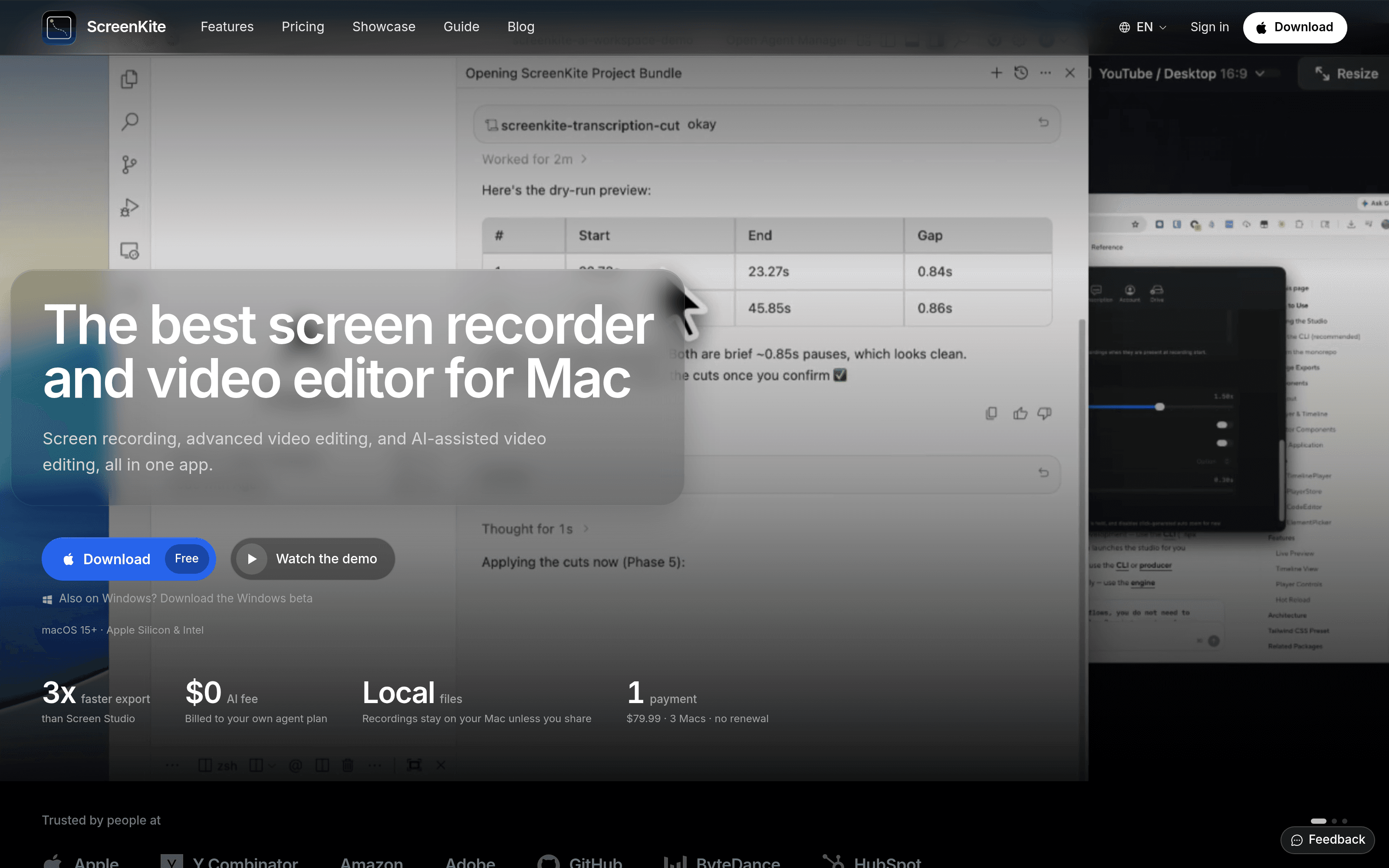
The ScreenKite home page, leading with 'The best screen recorder and video editor for Mac'.
ScreenKite lives in a floating toolbar. Display, Window, Area, Screenshot and Device / Sim on the left, then your camera, system audio and microphone on the right, plus a teleprompter button and settings. That's the whole recording interface, and I like that it doesn't pretend to be more.
The recording toolbar: display, window, area, screenshot and device capture, with camera, system audio and microphone pickers.
I picked Display, turned on my camera and my RØDE microphone, and recorded a 1:58 tour of Uneed. Once I stopped, the recording opened in the editor. Under the hood, ScreenKite had kept everything separate: the screen captured at 5K from my display, the camera as its own video track, and the microphone and system audio on two separate audio tracks. That separation matters later, because it's what lets you move the camera bubble, mute one source, or cut all four in sync.
The project canvas defaulted to 4K at 30 fps, on a wallpaper background with rounded corners and 10% padding, and my camera already sat in a bubble in the corner. Before touching anything, the recording already looked like something I could post.
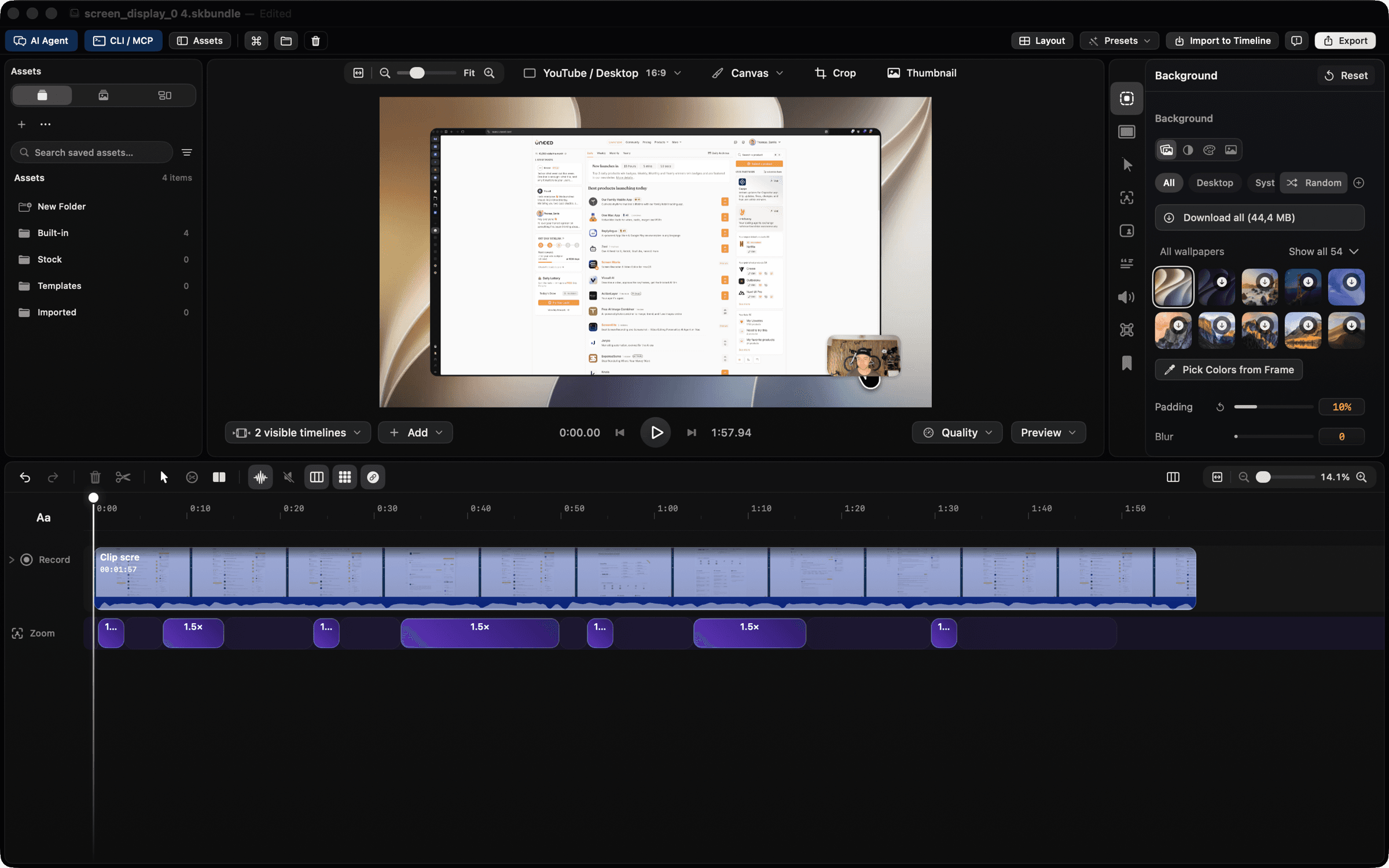
This is the feature people buy screen recorders like this for, and ScreenKite does it well. While I was talking and clicking around Uneed, it watched my clicks and laid down zooms by itself. When I opened the editor, the Zoom track under my recording already held seven zoom segments, each one lined up with a moment where I'd clicked something.
The editor right after recording, with the seven zooms auto zoom placed on the Zoom track under the clip.
Each zoom is a block on the timeline you can stretch, move or delete, so the automatic pass is a starting point rather than a decision you're stuck with. For a quick demo, I would have shipped these zooms as they were. One small thing I noticed in the export: when the camera zooms in, the cursor is scaled up with it, and at 1.5× the text cursor was big enough to cover part of a word.
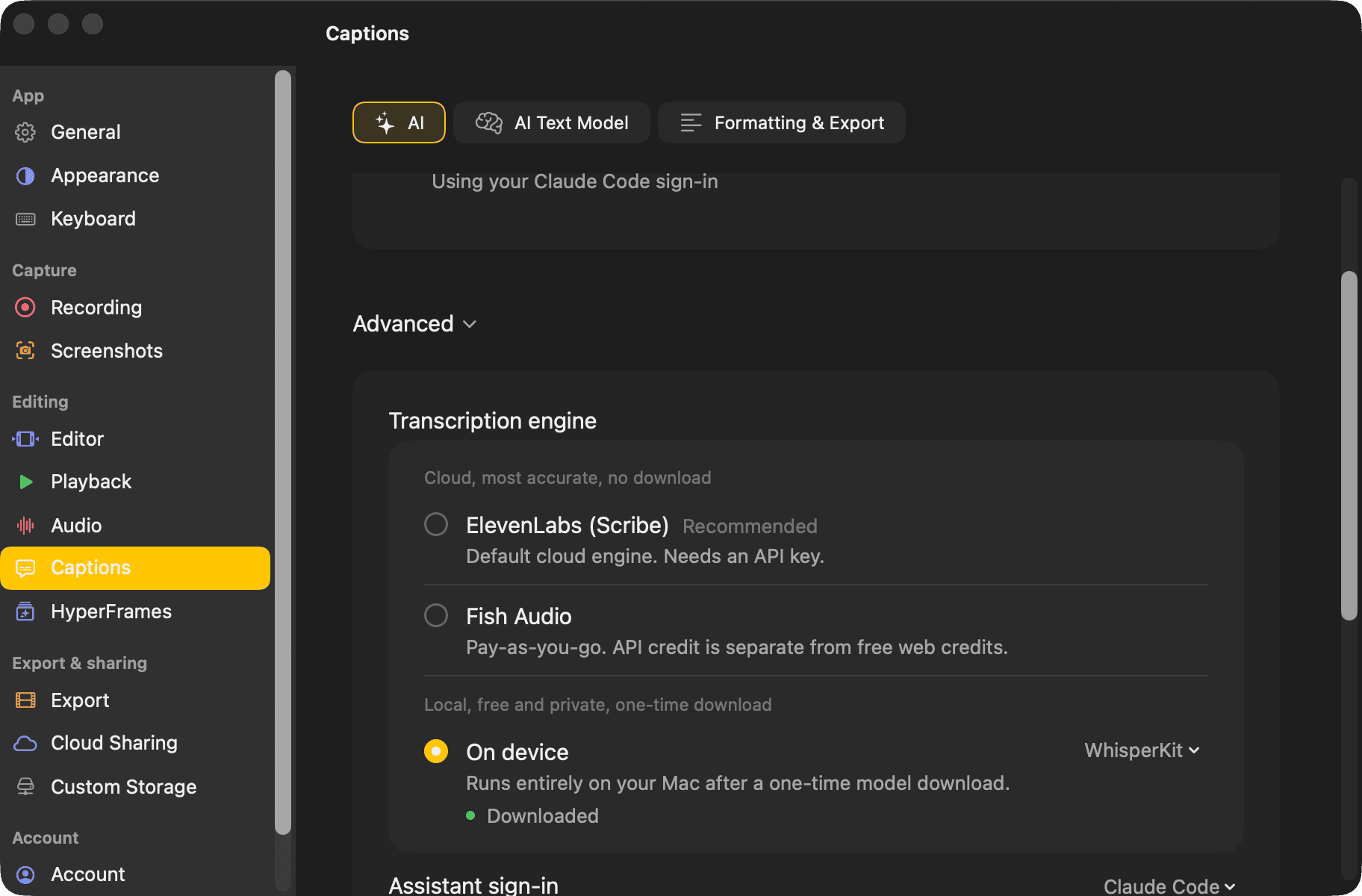
Captions start with a transcript, and ScreenKite gives you a choice of engines. ElevenLabs and Fish Audio run in the cloud and need an API key. The "On device" option runs on your Mac after a one-time download, using either Apple Speech or WhisperKit.
I went with WhisperKit, since that's the private option ScreenKite puts forward. The default model is a 142 MB download, and once it was there, it transcribed my 1:58 recording in about 9 seconds, entirely offline. That's genuinely fast.
The transcription settings, with the On device engine set to WhisperKit and the model downloaded.
Accuracy is where I have to be honest. My English has a French accent, and the default WhisperKit model struggled with proper nouns. "Uneed" came out as "Unid" and "unit", ScreenKite became "SpringCity", Screen Studio became "Spring Studio", my own name became "Tomah", and "pricing page" turned into "pressing page". The regular sentences were fine. The other thing to know is that WhisperKit leaves out hesitation sounds entirely, so none of my "um"s made it into the transcript.
Neither of those turned out to be a dealbreaker, and the reason is the next section.
This is what sets ScreenKite apart from the other recorders I know. The editor exposes its timeline as a set of tools that an AI agent can call: reading the project, cutting words from the transcript, removing dead air, adding captions, changing the mockup, exporting. In version 2.1.9, the built-in command line lists 92 of them, and the app also runs as an MCP server, so Claude Code, Codex, Gemini CLI or Cursor can drive it from your terminal.
You don't even need the terminal. There's an AI Agent panel inside the editor, and it had already picked up my Claude Code sign-in, with Claude Opus 5.5 selected in its model picker. ScreenKite doesn't sell you AI credits: the agent runs on whatever subscription you already pay for.
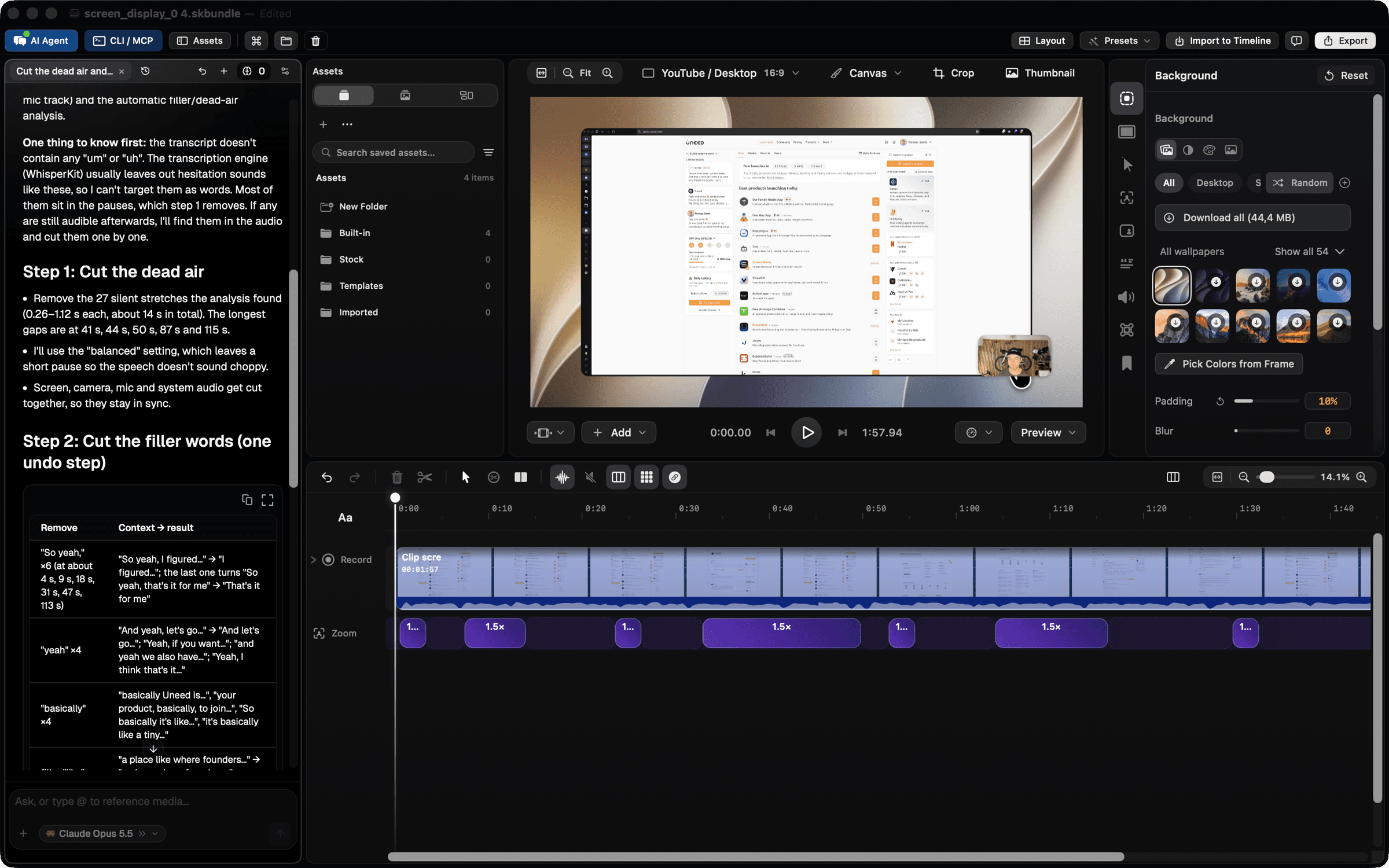
I typed one request: cut the dead air and the filler words without changing the meaning, add captions to the whole video, fix the product names the transcription got wrong, and show me the plan before touching the timeline.
The agent's plan in the AI Agent panel, before any change: 27 silent stretches to remove in step 1, and a table of filler words with their context in step 2.
The plan was better than what I asked for. The agent analysed the recording first, then came back with four steps. It found 27 silent stretches worth about 14 seconds. It listed every filler it wanted to remove in a table with the surrounding words, so I could see that "So yeah, I figured..." would become "I figured...". It also listed what it was keeping on purpose because it carried meaning. And it told me up front that the transcript contained no "um" at all, so those would only go if they sat inside a pause. Then it asked me about three more mis-hearings I hadn't spotted myself, including "Tomah" and "pressing page".
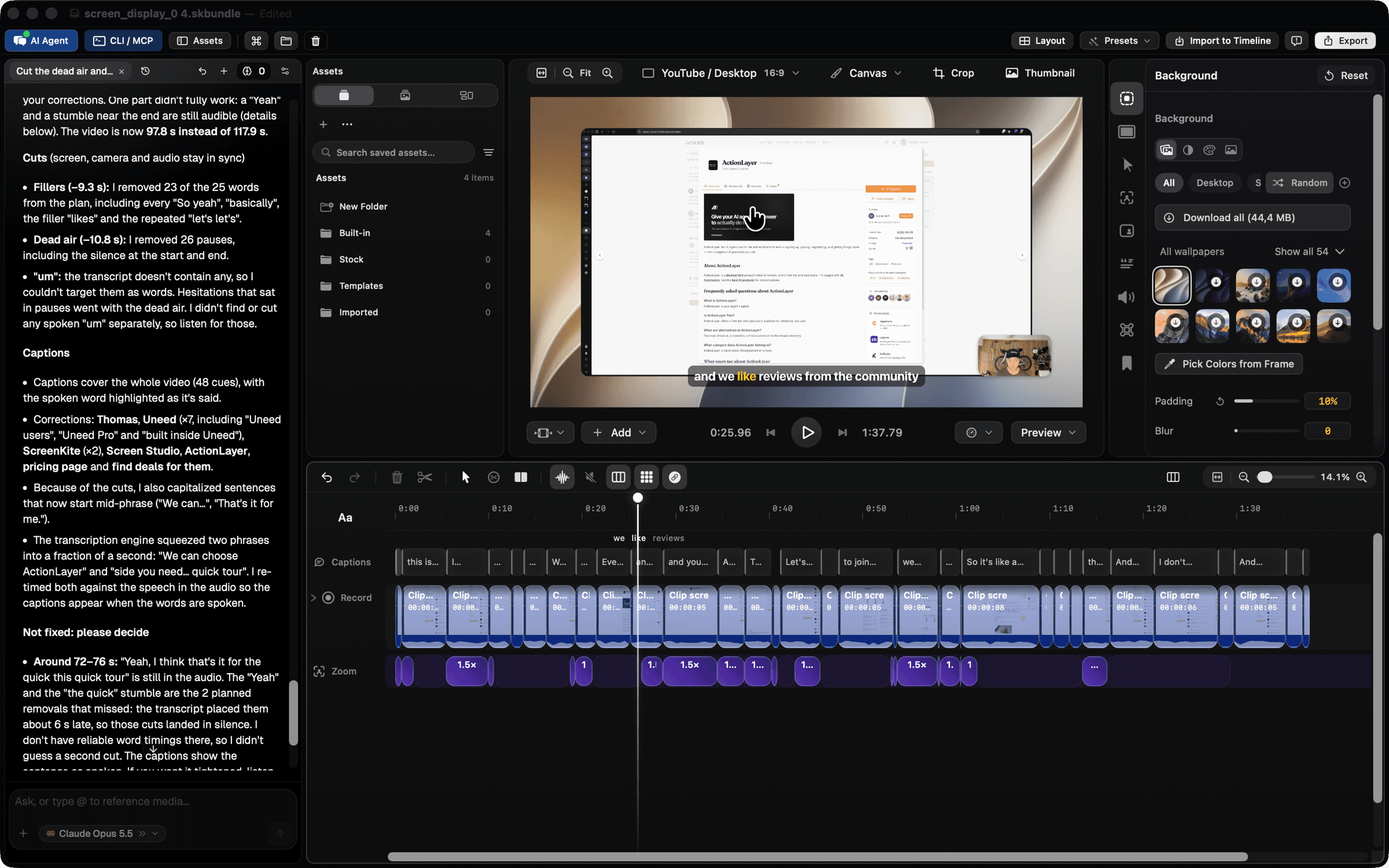
I answered and said go. About five minutes later it was done, and the report was refreshingly candid:
23 of the 25 planned filler words removed (9.3 seconds), and 26 pauses cut (10.8 seconds), taking the video from 117.9 to 97.8 seconds
Screen, camera, microphone and system audio cut together, so everything stayed in sync, and the zooms moved with the cuts
48 caption cues across the whole video, with the spoken word highlighted, and every product name fixed
Two planned cuts around 72 to 76 seconds that missed, because the transcript's timings were about six seconds off there. Instead of guessing, it left them alone and asked me to decide
After the edit: the agent's report on the left, the cut-up timeline with the new Captions track, and a word-highlighted caption in the preview.
Two details made me trust it more. Midway through, it noticed on its own that one cut had swallowed part of a real sentence, and it went back to check before reporting. And when I asked for a playhead move from the command line, the editor didn't just jump: it popped up a "Jump to this time?" prompt, so nothing outside the app can move your timeline around behind your back. There's also an "Undo last AI edit" button right in the panel.
This isn't instant. Five minutes is longer than you'd spend on one cut by hand, and it still asks you to give the result a quick play-through. But that's 49 cuts and 48 captions I didn't have to make by hand, and I didn't touch a single clip.
The last step in a launch video is usually putting the recording inside a device, and ScreenKite has a big catalogue for that. The mockup list has 26 devices, from current iPhones and the iPhone Duo foldable to iPads, MacBook Pro and Air, a Studio Display, an iMac and a set of matte "clay" devices. There are also twelve camera-move presets like an orbit, a hero reveal, a laptop lid opening or a Duo unfold.
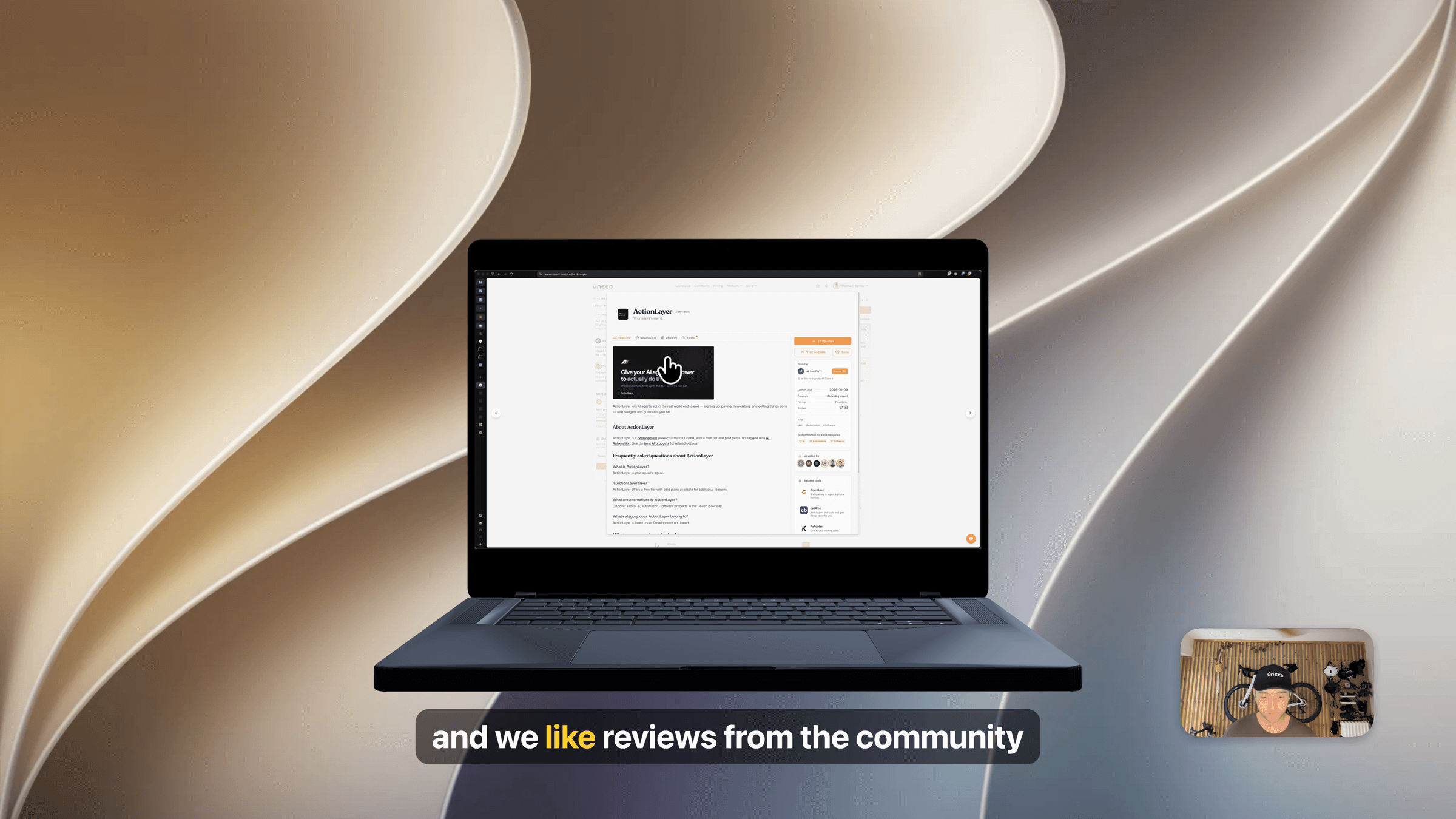
Turning the mockup on is a single toggle in the Screen panel. On Auto, ScreenKite matched my recording to a Studio Display because it had the exact native resolution, which is a nice touch. I switched it to a MacBook Pro 16-inch with a lid-opening intro, and here's a frame from the final 4K export, with the captions and my camera bubble on top:
A frame from the final 4K export: the edited recording inside a MacBook Pro 16-inch mockup, with a word-highlighted caption and the camera bubble.
I also tried the iPhone Duo. It works, but a 16:9 desktop recording sits letterboxed on a foldable screen, so that one is clearly meant for recordings made from an iPhone, which I didn't have for this test.
ScreenKite claims its exports are three times faster than Screen Studio's: on their own benchmark, a 2:04 4K 60 fps clip exports in 1:10 against 3:40 for Screen Studio on the same MacBook Pro. I didn't rerun that head-to-head myself, so treat those numbers as theirs. My recording was also 30 fps rather than 60, so the figures below aren't directly comparable to theirs either.
What I can give you is my own stopwatch on my M5 Mac, with H.264 MP4 at the "balanced" quality setting and no watermark on Pro:
The raw 1:58 recording, with auto zooms, wallpaper and camera bubble, exported to 4K in 54 seconds
The edited 1:38 version, split into 33 clips, with burned-in captions and the 3D MacBook mockup, exported to 4K in 49 seconds
So on my machine, both exports took less than half the length of the video. ScreenKite is fully native (Swift and Metal on the hardware encoder, no Electron), and you feel it.
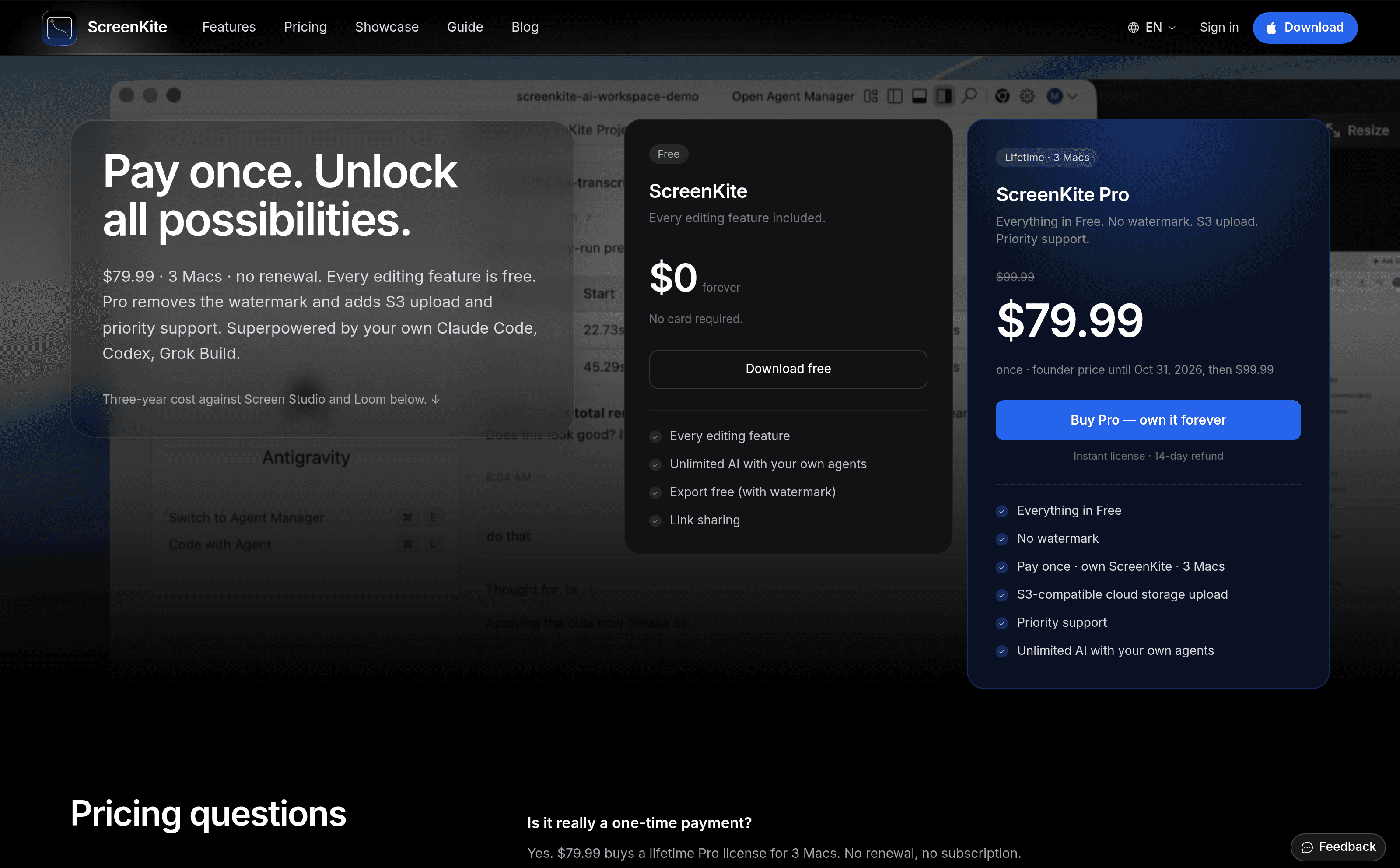
ScreenKite has a free plan and a one-time Pro license, with no subscription.
Plan
Price
What you get
Free
$0
Every editing feature, unlimited AI with your own agents, link sharing, exports with a watermark
Pro
$79.99 once (founder price until October 31, 2026, then $99.99)
Everything in Free, no watermark, S3-compatible upload, priority support, 3 Macs
Enterprise
On request
Self-hosted Docker server, private share links, storage on your own infrastructure
Pro comes with a 14-day refund, no reason asked. The interesting part of the free plan is how little it holds back: you can test every editing feature, including the AI agent, before paying, and Pro mostly removes the watermark. The AI agent never costs anything extra, because it runs on your own Claude, ChatGPT or other subscription.
The pricing page: a free plan with every editing feature, and ScreenKite Pro at $79.99 once for 3 Macs.
ScreenKite needs macOS 15 or later and runs on Apple Silicon and Intel Macs, though on-device transcription needs Apple Silicon. There is also a Windows beta, which I didn't try: everything in this review is the Mac app.
If you're shopping for a Mac screen recorder in 2026, you're probably also looking at Screen Studio, Loom and Cap. Screen Studio is the closest match, with the same polished auto zoom idea, but it's sold as a subscription and has no agent editing. Loom is a different product, built around sharing async videos with a team in the cloud rather than producing a polished demo. Cap is the open-source option. ScreenKite's pitch is to be the one app that covers recording, real multi-track editing and AI editing, and to sell it once.
A founder or developer shipping product demos, changelog clips or launch videos every week
Already paying for Claude Code, Codex or another coding agent, and happy to let it do the boring cuts
Tired of recording in one app and fixing the edit in another
Someone who would rather pay once than add another subscription
If you're on Windows, the Mac app is clearly the main product for now, with Windows still in beta. And if what you need is a team space where colleagues leave comments on async updates, Loom is still built for that job and ScreenKite isn't.
The thing that impressed me most about ScreenKite isn't any single feature. It's that the pieces actually connect. Auto zoom built my first draft while I was recording, WhisperKit transcribed it in seconds without anything leaving my Mac, and the agent turned that rough transcript into clean cuts and correct captions, while being upfront about the two spots it wasn't sure about. Then the export came out in under a minute. That's the whole pipeline from recording to a captioned 4K video, and I barely touched the timeline.
It's not perfect. The default transcription model trips over accents and brand names, the agent takes a few minutes and still wants a final look from you, and the editor has a lot of panels to learn. But for a one-time price, it's the best answer I've seen to the "I recorded it, now I have to edit it" problem.
What I liked:
Recorder and multi-track editor in one native app, with screen, camera, mic and system audio kept on separate tracks
Auto zoom that placed seven sensible zooms during a two-minute take, all editable afterwards
The AI agent shows its plan before editing, explains what it keeps and why, and flags its own misses instead of guessing
It works with the AI subscription you already have, with no AI fee from ScreenKite
Fast, private transcription: about 9 seconds for two minutes of audio, fully on-device
4K exports in under a minute on my M5, even with a 3D mockup and burned-in captions
A one-time price, and a free plan that includes every editing feature
Things to keep in mind:
Built Mac first: macOS 15 or later, with Windows only in beta
The default WhisperKit model mangled my brand names and my name, and drops every "um", so you'll lean on the agent or manual fixes
An agent edit took about five minutes on a two-minute video, and a couple of cuts can still miss
The free plan watermarks exports, and the $79.99 founder price ends on October 31, 2026
The editor is dense: there's a lot to learn if you want more than the defaults
If you record product demos on a Mac, ScreenKite is worth downloading, even just to watch your agent edit your next one.
Superblog Review - A Blogging Platform Built for Google and ChatGPT
We've tested Superblog, a hosted blogging platform for SaaS teams that handles technical SEO, AI search, subdirectory hosting and built-in auto-translation, with an MCP server for AI agents.
Reviews
MakeForms Review - A HIPAA Form Builder That Also Signs and Schedules
We've tested MakeForms, a HIPAA-ready form builder that bundles OTP verification, per-region data storage, e-signatures, document generation and scheduling.
Reviews
DOER Review - A Network With No Algorithm, Zero Commission
We've tested DOER, a professional networking platform with no ads, no algorithm and zero commission, where members connect, learn, earn as mentors and build in public.
Reviews
HTML/CSS to Image Review - URL Screenshots, Social Cards and MCP
We've tested HTML/CSS to Image, a rendering API for HTML, live URLs and reusable templates, now with a visual editor and a hosted MCP server.
We use cookies
Essential and analytics cookies keep Uneed running and help us understand usage. Marketing and affiliate cookies are optional. Privacy policy